




Windows 11 Running Slow After Update? Here’s the Fix
Windows 11 updates often cause temporary slowdowns due to background processes like reindexing, driver conflicts, and new features running silently. Most cases resolve within a few hours, but if your...

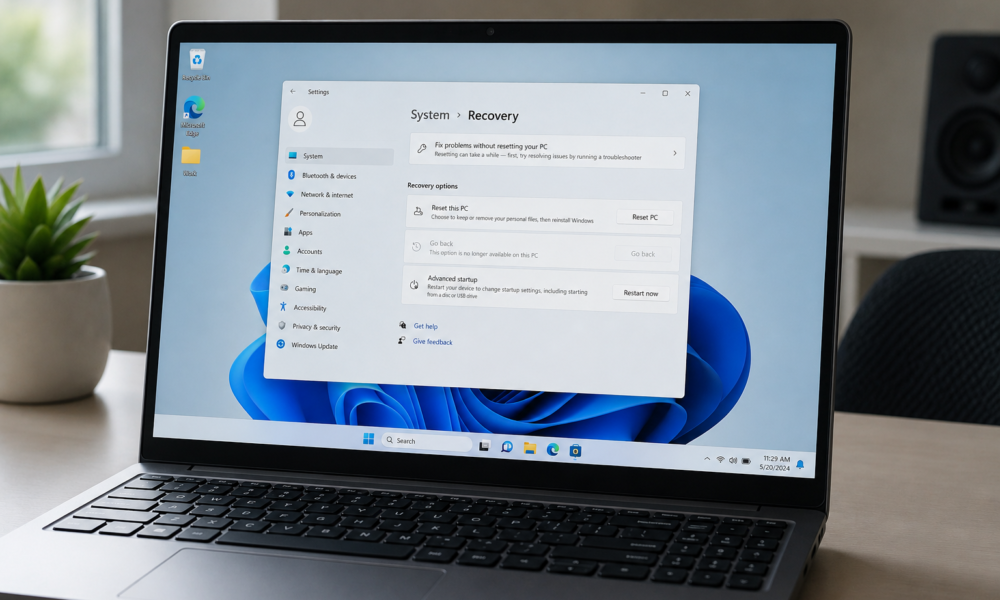
Windows 11 updates often cause temporary slowdowns due to background processes like reindexing, driver conflicts, and new features running silently. Most cases resolve within a few hours, but if your PC stays slow, a handful of targeted fixes—from closing background apps to adjusting power settings—can restore normal performance quickly.
Table Of Content
- Why Do Windows 11 Updates Slow Down Your PC?
- Step-by-Step Fixes for Windows 11 Running Slow After an Update
- Fix 1: Check and Close Background Apps via Task Manager
- Fix 2: Disable Unnecessary Startup Programs
- Fix 3: Update or Roll Back Device Drivers
- Fix 4: Run Disk Cleanup and Clear Temporary Update Files
- Fix 5: Check for a Follow-Up Bug-Fix Update
- Fix 6: Switch Your Power Settings to “Best Performance”
- Fix 7: Turn Off Visual Effects and Animations
- Fix 8 (Last Resort): Roll Back the Update
- How to Prevent Slowdowns from Future Updates
- Frequently Asked Questions
- How long does Windows 11 stay slow after an update?
- Will rolling back a Windows 11 update delete my files?
- Why is Windows 11 slow after update on my laptop but not my desktop?
- Can too many startup programs cause Windows 11 to slow down after an update?
- Is it safe to disable Windows 11 visual effects?
- Start With Fix 1 and Work Your Way Down
Windows 11 updates are supposed to make your PC faster and more secure. But more often than not, users find the opposite: their computer feels sluggish, unresponsive, or just plain slow right after an update. You’re not imagining it—and you’re not alone.
Why Do Windows 11 Updates Slow Down Your PC?
After a major update, Windows quietly runs several background tasks that consume memory and processing power. Here’s what’s typically happening behind the scenes:
- Search reindexing: Windows rebuilds its file index after an update, which is CPU-intensive and can last for hours.
- Driver conflicts: New updates sometimes clash with existing hardware drivers, causing performance hiccups.
- New features running silently: Microsoft may enable new background services or telemetry features that weren’t running before.
- Temporary update files: Leftover installation files take up storage and can slow read/write speeds on your drive.
The good news? Most of these issues are fixable without reinstalling Windows or calling a technician.
Step-by-Step Fixes for Windows 11 Running Slow After an Update
Work through these fixes in order. Start with the quick wins before moving to the more involved solutions.
Fix 1: Check and Close Background Apps via Task Manager
Open Task Manager by pressing Ctrl + Shift + Esc. Click the Processes tab and sort by CPU or Memory. If you see unfamiliar apps hogging resources, right-click them and select End Task.
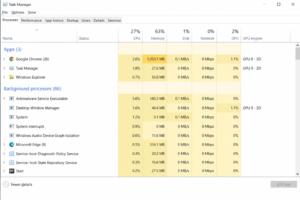
Be cautious—don’t close anything labeled “Windows” or “System” processes. Focus on third-party apps or anything that seems out of place.
Fix 2: Disable Unnecessary Startup Programs
Go to Settings > Apps > Startup. Here you’ll see a list of apps that launch automatically when Windows starts. Toggle off anything you don’t need immediately after boot—things like Spotify, OneDrive (if you don’t rely on it), or browser update helpers.
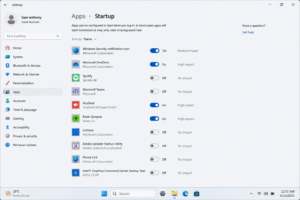
Fewer startup programs means faster boot times and more free memory throughout the day.
Fix 3: Update or Roll Back Device Drivers
A newly installed Windows 11 update can sometimes push outdated or incompatible driver versions to your hardware. Open Device Manager by right-clicking the Start button and selecting it from the menu. Look for any devices with a yellow warning icon.
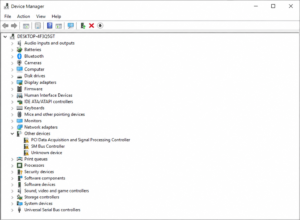
Right-click the flagged device and choose Update driver. If the issue started right after the update, you can also choose Properties > Driver > Roll Back Driver to revert to the previous version.
For the most accurate drivers, visit your hardware manufacturer’s official website directly (Dell, HP, Lenovo, ASUS, etc.) rather than relying solely on Windows Update.
Fix 4: Run Disk Cleanup and Clear Temporary Update Files
Windows stores update files long after installation. Over time, these leftovers eat up storage and slow your system down. Search for Disk Cleanup in the Start menu and run it as Administrator. Click Clean up system files, then check Windows Update Cleanup and Temporary files.
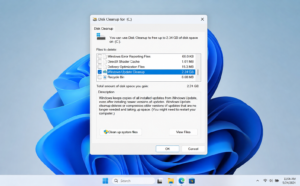
You can also navigate to Settings > System > Storage > Temporary files for a more visual overview of what’s taking up space.
Fix 5: Check for a Follow-Up Bug-Fix Update
Microsoft often releases a smaller, secondary update within days of a major one—specifically to address performance issues introduced by the first. Open Settings > Windows Update and check for new updates. Installing the latest patch is one of the fastest ways to fix Windows 11 slow after update problems caused by Microsoft’s own bugs.
Learn more about how Microsoft handles update cycles on the Windows Release Health dashboard.
Fix 6: Switch Your Power Settings to “Best Performance”
Sometimes Windows defaults to a Balanced or Power Saver mode after an update, which intentionally limits performance. Go to Settings > System > Power & battery > Power mode and switch it to Best Performance.
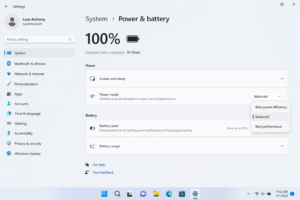
This is especially common on laptops, where Windows may have changed the power plan automatically after the update.
Fix 7: Turn Off Visual Effects and Animations
Windows 11 comes with smooth animations and transparency effects that look great but consume processing power. To disable them, search for “Adjust the appearance and performance of Windows” in the Start menu. Select Adjust for best performance, or manually uncheck specific effects you don’t need.
This change alone can make a noticeable difference on older or mid-range hardware.
Fix 8 (Last Resort): Roll Back the Update
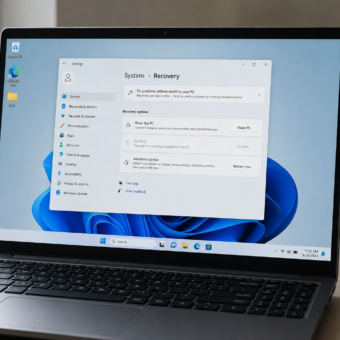
If nothing else works and your PC remains painfully slow, you can uninstall the recent update entirely. Go to Settings > Windows Update > Update history > Uninstall updates. Find the most recent update, click it, and follow the prompts to remove it.
Microsoft’s official guide to uninstalling updates walks you through this safely.
Note: You typically have a 10-day window to roll back before Windows permanently commits to the new version.
How to Prevent Slowdowns from Future Updates
A few habits can help you avoid this frustration the next time Microsoft pushes a big update:
- Delay updates by a week or two. Go to Settings > Windows Update > Advanced options > Pause updates to buy yourself time while early adopters report bugs.
- Create a restore point before updating. Search for “Create a restore point” in Start and set one up before each major update cycle.
- Keep your drivers current. Regularly check manufacturer sites or use Windows Update to keep drivers up to date, reducing the chance of conflicts.
ALSO READ : Windows 11 Running Slow ? 10 Ways to Speed It Up
Frequently Asked Questions
How long does Windows 11 stay slow after an update?
For most users, the slowdown is temporary—usually lasting between 30 minutes and a few hours while background tasks like reindexing complete. If your PC is still slow after 24 hours, manual fixes like those above are needed.
Will rolling back a Windows 11 update delete my files?
No. Rolling back a Windows update does not delete personal files. It only removes the update itself and reverts system files to their previous state. That said, creating a backup beforehand is always a smart precaution.
Why is Windows 11 slow after update on my laptop but not my desktop?
Laptops are more likely to be affected because Windows may automatically switch to a lower power mode to preserve battery life after an update. Changing the power mode to “Best Performance” (Fix 6 above) usually resolves this.
Can too many startup programs cause Windows 11 to slow down after an update?
Yes. Updates can sometimes re-enable startup apps that were previously disabled, or add new ones. Revisiting your startup settings after every major update is a good habit.
Is it safe to disable Windows 11 visual effects?
Completely safe. Turning off animations and transparency effects only changes how Windows looks—it does not affect stability, security, or functionality. You can re-enable them at any time.
Start With Fix 1 and Work Your Way Down
A slow PC after a Windows 11 update is frustrating, but it’s rarely a sign of serious damage. Start by closing background apps and checking for a follow-up patch—those two steps alone resolve the issue for most users. If the problem persists, work through the remaining fixes in order, and save the update rollback as your last option.
Your PC should be running smoothly again well before you reach step eight.





[…] Windows 11 Running Slow After Update? Here’s the Fix […]