





Windows 11 Running Slow ? 10 Ways to Speed It Up
Windows 11 Running Slow down due to startup bloat, outdated drivers, low storage, malware, or power settings. The fastest fixes include disabling startup programs, clearing temporary files, and...

Windows 11 Running Slow down due to startup bloat, outdated drivers, low storage, malware, or power settings. The fastest fixes include disabling startup programs, clearing temporary files, and adjusting your power plan—most of which take under 10 minutes and require no technical expertise.
Table Of Content
- Why Is Windows 11 Running Slow? Common Causes
- Solution 1: Disable Unnecessary Startup Programs
- Solution 2: Update Windows 11 and Device Drivers
- Solution 3: Free Up Storage Space
- Solution 4: Run Malware and Virus Scans
- Solution 5: Disable Visual Effects and Animations
- Solution 6: Increase Virtual Memory (Page File)
- Solution 7: Upgrade RAM or Replace Your HDD with an SSD
- Do You Need More RAM?
- SSD vs. HDD: The Performance Gap Is Enormous
- Solution 8: Clean Temporary Files
- Solution 9: Switch to a High Performance Power Plan
- Solution 10: Perform a Clean Boot
- Side-by-Side Comparison: All 10 Fixes at a Glance
- Frequently Asked Questions
- Why is Windows 11 slower than Windows 10 on older hardware?
- How much RAM does Windows 11 actually need to run smoothly?
- Can too many browser tabs slow down Windows 11?
- Does a factory reset fix a slow Windows 11 PC?
- Is CCleaner safe to use on Windows 11?
- How do I know if my slow PC is a hardware or software problem?
- Keep Windows 11 Running Fast for the Long Term
A sluggish PC doesn’t just test your patience—it chips away at your productivity, one spinning wheel at a time. Whether your system takes forever to boot, stutters during basic tasks, or freezes mid-workflow, slow Windows 11 performance is a frustrating reality for millions of users.
The good news? Most performance issues are fixable without professional help or expensive upgrades. This guide covers 10 proven solutions to speed up Windows 11, ranging from simple settings tweaks to hardware upgrades. Each fix is explained step-by-step, so you can get your PC running smoothly again—fast.
Why Is Windows 11 Running Slow? Common Causes
Before jumping to fixes, it helps to understand what’s actually dragging your system down. Windows 11 performance issues typically stem from one or more of the following:
- Too many startup programs launching in the background
- Outdated drivers or Windows updates causing compatibility issues
- Low storage space limiting the OS’s ability to function efficiently
- Malware or bloatware consuming processing power without your knowledge
- Visual effects and animations that strain older hardware
- Insufficient RAM struggling to handle modern workloads
- Power settings configured for battery savings rather than performance
- Fragmented HDDs (spinning hard drives, not SSDs) slowing read/write speeds
Now, let’s fix them.
Solution 1: Disable Unnecessary Startup Programs
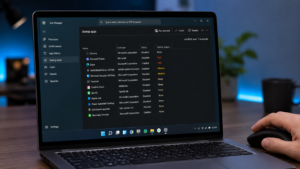
Every app that launches at startup consumes memory and CPU before you’ve even opened a browser tab. Over time, startup lists balloon with programs you rarely use—Spotify, Skype, Discord, OneDrive—all fighting for resources the moment Windows loads.
How to do it:
- Press Ctrl + Shift + Esc to open Task Manager
- Click the Startup apps tab
- Sort by Startup impact (High/Medium/Low)
- Right-click and Disable any non-essential program
Safe to disable: Spotify, Teams (if not used for work), Skype, gaming launchers, and third-party updaters. Keep: antivirus software and essential hardware drivers.
Expected impact: Noticeably faster boot times, often cutting startup duration by 30–60 seconds on bloated systems.
Solution 2: Update Windows 11 and Device Drivers
Running an outdated OS or stale drivers is like trying to run modern software on decade-old infrastructure. Windows updates patch bugs, security vulnerabilities, and performance bottlenecks. GPU and chipset drivers, in particular, have a significant effect on system stability and speed.
How to check for Windows updates:
- Go to Settings > Windows Update
- Click Check for updates and install anything pending
- Restart your PC afterward
For drivers, download them directly from your hardware manufacturer:
- NVIDIA drivers: nvidia.com/Download/index.aspx
- AMD drivers: amd.com/en/support
- Intel drivers: intel.com/content/www/us/en/support/detect.html
Avoid using third-party driver updaters—they often install incorrect or outdated versions.
Solution 3: Free Up Storage Space
Windows 11 needs breathing room. As a general rule, keep at least 10–15% of your drive free for the OS to function efficiently. When storage fills up, Windows struggles to create temporary files, manage virtual memory, and run updates.
How to reclaim space:
- Use Windows Explorer to sort files by size and hunt down large, unused folders
- Uninstall programs you no longer use via Settings > Apps > Installed apps
- Move photos, videos, and documents to cloud storage:
-
- Google Drive — 15 GB free
- Microsoft OneDrive — 5 GB free
- Dropbox — 2 GB free (expandable)
For a deeper analysis of what’s eating your storage, WinDirStat (windirstat.net) is a free, reliable tool that maps your entire drive visually.
Solution 4: Run Malware and Virus Scans
Malware doesn’t always announce itself. Cryptominers, spyware, and adware can silently consume CPU and memory in the background—causing performance issues that look identical to hardware problems.
Windows Defender, built into Windows 11, is genuinely capable and covers most threats for everyday users. Run a full scan via:
Windows Security > Virus & threat protection > Scan options > Full scan
For stubborn malware, add Malwarebytes Free (malwarebytes.com) as a second-layer scan. It specializes in adware and potentially unwanted programs (PUPs) that traditional antivirus tools sometimes miss.
Schedule weekly scans to stay ahead of threats without manually remembering to run them.
Solution 5: Disable Visual Effects and Animations
Windows 11 ships with a polished, animated UI—but those transitions, shadows, and animations come at a cost. On older or lower-spec hardware, disabling them can produce a noticeably snappier experience.
How to disable visual effects:
- Press Windows + R, type sysdm.cpl, and hit Enter
- Go to Advanced > Performance > Settings
- Select Adjust for best performance (disables all effects), or manually uncheck:
-
- Animate windows when minimizing/maximizing
- Fade or slide menus into view
- Show shadows under windows
This won’t make Windows 11 look as sleek, but the responsiveness trade-off is worth it on machines with 4–8 GB of RAM or older integrated graphics.
Solution 6: Increase Virtual Memory (Page File)
When your physical RAM fills up, Windows uses a portion of your hard drive as “virtual memory” (also called a page file). If this is set too low, applications crash or stall. Manually increasing it can stabilize performance on RAM-constrained systems.
How to adjust virtual memory:
- Press Windows + R, type sysdm.cpl
- Go to Advanced > Performance > Settings > Advanced > Virtual Memory > Change
- Uncheck Automatically manage, select Custom size
- Set Initial size to 1.5x your RAM (e.g., 6,144 MB for 4 GB RAM) and Maximum size to 3x your RAM
Important caveat: This is a workaround, not a permanent fix. If you’re regularly maxing out RAM, upgrading physical memory is the real solution (see Solution 7).
Solution 7: Upgrade RAM or Replace Your HDD with an SSD
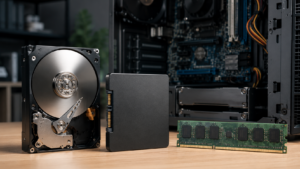
Some performance problems can’t be patched—they require hardware. Two upgrades deliver the biggest bang for your buck:
Do You Need More RAM?
Signs you’re RAM-limited:
- Task Manager shows RAM usage consistently above 80%
- Programs crash or become unresponsive under moderate workloads
- Multitasking feels impossible
Windows 11 runs comfortably on 8 GB, but 16 GB is the practical standard for modern productivity and light gaming. RAM upgrades typically cost $25–$60 for 8 GB sticks, depending on type (DDR4 vs. DDR5).
SSD vs. HDD: The Performance Gap Is Enormous
If your PC is still running a traditional spinning hard drive, replacing it with an SSD is the single most impactful upgrade you can make. SSDs are 5–10x faster for read/write operations, dramatically cutting boot times and application load speeds.
Budget SSDs from brands like Samsung, Kingston, or Crucial start at around $50–$80 for 500 GB—a worthy investment for a machine you use daily.
Solution 8: Clean Temporary Files
Windows accumulates temporary files constantly—cached data, old update files, and log records that pile up over time and waste gigabytes of space.
Option 1: Built-in Disk Cleanup
- Search Disk Cleanup in the Start menu
- Select your C: drive and run the scan
- Check Temporary files, Recycle Bin, and Windows Update Cleanup
Option 2: Storage Sense (automatic)
Go to Settings > System > Storage > Storage Sense and toggle it on. Configure it to run monthly and automatically delete temp files and old downloads.
Option 3: Third-party tools
- CCleaner (ccleaner.com) — popular, easy to use, free tier available
- BleachBit (bleachbit.org) — open-source, more aggressive cleaning
Use third-party cleaners cautiously. Stick to clearing temp files and caches; avoid registry cleaners, which can cause instability.
Solution 9: Switch to a High Performance Power Plan
By default, Windows 11 uses a Balanced power plan that throttles CPU speed to conserve energy. If you’re on a desktop or a plugged-in laptop, there’s no reason to leave performance on the table.
How to change your power plan:
- Search Power plan in the Start menu and select Choose a power plan
- Select High Performance (or Ultimate Performance if available)
For gamers and heavy workloads, the Ultimate Performance plan can be unlocked by running this in Command Prompt (Admin):
powercfg -duplicatescheme e9a42b02-d5df-448d-aa00-03f14749eb61
Trade-off: High Performance mode increases power consumption and generates more heat, which shortens battery life on laptops. Use it when plugged in; switch back to Balanced on battery.
Solution 10: Perform a Clean Boot
When nothing else works, a clean boot strips Windows down to its essentials—no third-party services, no background apps. This is the most effective diagnostic step for identifying software conflicts causing slowdowns.
How to perform a clean boot:
- Press Windows + R, type msconfig, and hit Enter
- Under Services, check Hide all Microsoft services, then click Disable all
- Under Startup, click Open Task Manager and disable all startup items
- Restart your PC
If your PC runs faster after a clean boot, re-enable services and startup items one at a time until you identify the culprit. This process takes patience but is highly effective at isolating problematic software.
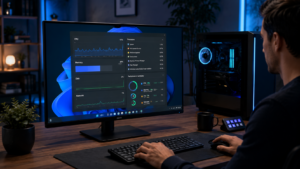
Side-by-Side Comparison: All 10 Fixes at a Glance
|
Solution |
Difficulty |
Time Required |
Expected Performance Gain |
|---|---|---|---|
|
Disable Startup Programs |
Easy |
5 min |
High (boot speed) |
|
Update Windows & Drivers |
Easy |
10–20 min |
Medium–High |
|
Free Up Storage Space |
Easy |
15–30 min |
Medium |
|
Run Malware Scans |
Easy |
30–60 min |
High (if infected) |
|
Disable Visual Effects |
Easy |
5 min |
Medium (older hardware) |
|
Increase Virtual Memory |
Moderate |
10 min |
Low–Medium |
|
Upgrade RAM / SSD |
Advanced |
1–2 hrs |
Very High |
|
Clean Temporary Files |
Easy |
10 min |
Low–Medium |
|
Adjust Power Settings |
Easy |
5 min |
Medium–High |
|
Clean Boot |
Moderate |
20–40 min |
High (diagnostic) |
Frequently Asked Questions
Why is Windows 11 slower than Windows 10 on older hardware?
Windows 11 has higher system requirements than Windows 10—including TPM 2.0, Secure Boot, and at least 4 GB of RAM. On machines that barely meet these thresholds, the extra overhead of Windows 11’s UI and background processes can cause noticeable slowdowns that weren’t present on Windows 10.
How much RAM does Windows 11 actually need to run smoothly?
Microsoft’s minimum requirement is 4 GB, but in practice, Windows 11 runs smoothly on 8 GB for standard productivity tasks. For multitasking, gaming, or creative workflows, 16 GB is the recommended standard.
Can too many browser tabs slow down Windows 11?
Yes. Browsers—especially Google Chrome—are among the heaviest RAM consumers on Windows 11. Each open tab uses memory. If you’re running 20+ tabs alongside other applications, you can easily exhaust 8 GB of RAM. Use a tab manager extension or switch to a lighter browser like Microsoft Edge or Firefox to reduce overhead.
Does a factory reset fix a slow Windows 11 PC?
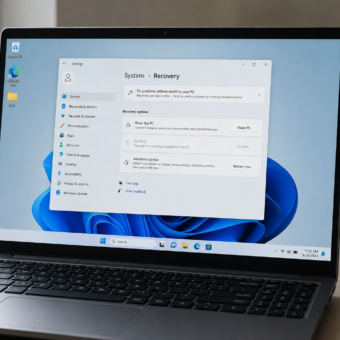
A factory reset (via Settings > System > Recovery > Reset this PC) can resolve deep software issues, but it’s a last resort—not a first step. Try all 10 solutions in this guide before wiping your machine. If you do reset, choose Keep my files to preserve personal data.
Is CCleaner safe to use on Windows 11?
CCleaner’s core cleaning features (temporary files, browser cache) are safe when used correctly. Avoid its registry cleaner, which can delete entries Windows relies on. Always download CCleaner from the official site at ccleaner.com to avoid counterfeit versions bundled with malware.
How do I know if my slow PC is a hardware or software problem?
A clean boot (Solution 10) is the fastest way to tell. If performance improves significantly with all third-party software disabled, the issue is software-related. If the system remains slow during a clean boot and basic tasks, the problem is likely hardware—insufficient RAM, a failing HDD, or an aging CPU.
Keep Windows 11 Running Fast for the Long Term
The most impactful quick wins are disabling startup programs, switching to a High Performance power plan, and clearing temporary files—all achievable in under 30 minutes with no technical background. For persistent slowdowns, the RAM or SSD upgrade is the most transformative long-term investment.
To maintain peak performance going forward:
- Run Storage Sense monthly
- Check for Windows updates weekly
- Schedule malware scans every 7 days
- Audit your startup programs quarterly
If your PC is still struggling after applying all 10 solutions, the hardware may simply be aging beyond what Windows 11 can optimize around. At that point, consulting a local technician or evaluating a hardware refresh is the practical next step.






[…] ALSO READ : Windows 11 Running Slow ? 10 Ways to Speed It Up […]
[…] ALSO READ : Windows 11 Running Slow ? 10 Ways to Speed It Up […]