





Why Your Phone Battery Draining After an Update (How to Fix It)
Phone Battery Draining! A software update often triggers background processes like app re-indexing and cache rebuilding, which temporarily drain your battery faster than usual. In most cases, the...

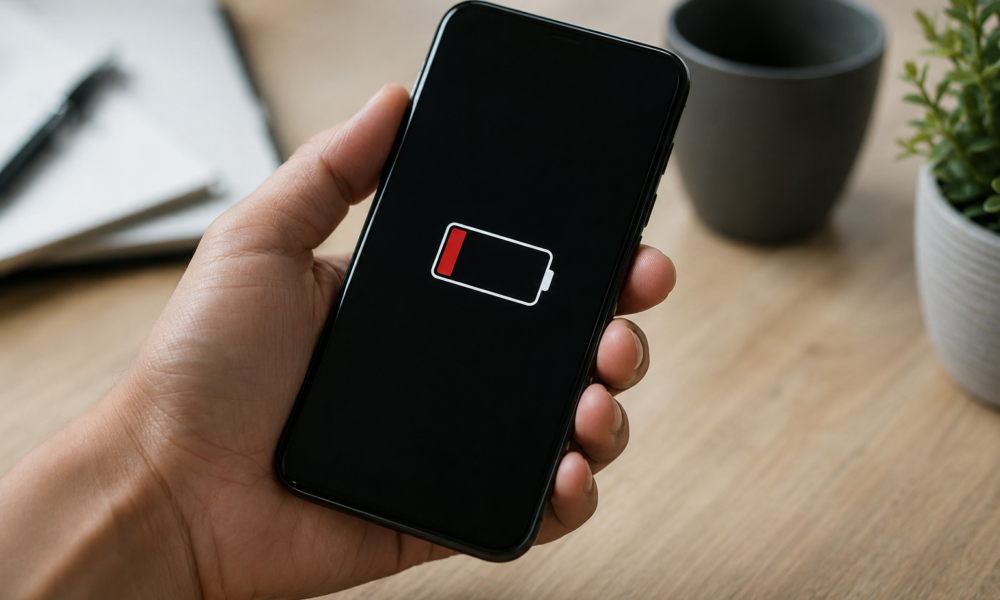
Phone Battery Draining! A software update often triggers background processes like app re-indexing and cache rebuilding, which temporarily drain your battery faster than usual. In most cases, the issue resolves itself within 24–48 hours. If it doesn’t, a few simple settings changes can fix it.
Table Of Content
You updated your phone, and now the battery is disappearing faster than ever. Frustrating — but you’re not alone. A phone battery draining fast after an update is one of the most common complaints across both iPhone and Android users, and the good news is that it’s almost always fixable.
Why Does Battery Drain After an Update?
When your phone installs a new software update, it doesn’t just sit there quietly. A lot happens in the background — and that activity eats up power.
Here are the most common reasons your battery takes a hit after an update:
- Background re-indexing: Your phone rebuilds its search index after an update, scanning through your apps, photos, and files. This is completely normal, but it uses a significant amount of processing power.
- Cache rebuilding: Apps clear and rebuild their stored data to work properly with the new software. Again, this is temporary — but it runs your processor hard.
- New features running in the background: Updates often introduce new features (like improved widgets or always-on displays) that are switched on by default. You may not even know they’re running.
- App compatibility issues: Some apps aren’t fully optimized for the new OS version right away. An app that’s struggling to run properly can drain your battery surprisingly fast.
- Buggy updates: Occasionally, an update itself contains a bug that causes abnormal battery usage. It happens, and manufacturers usually push a fix quickly.
The important thing to remember: most of this settles down on its own. Give your phone a day or two before assuming something is seriously wrong.
How to Fix Battery Drain After an Update
If your battery is still tanking after 48 hours, it’s time to take action. Work through these fixes in order — most people find a solution before reaching the end of the list.
1. Restart your phone
Simple, but effective. A fresh restart clears temporary processes that may be stuck running after the update. Hold down the power button, restart, and see if things improve.
2. Wait 24–48 hours
This one requires patience. Your phone needs time to finish re-indexing and optimizing. Keep it plugged in overnight for the first couple of nights after an update. Many users find the battery life returns to normal on its own.
3. Check which apps are draining your battery
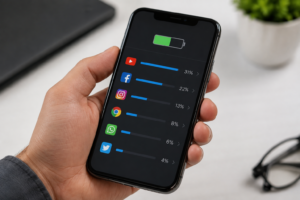
Go to Settings > Battery (on iPhone) or Settings > Battery > Battery Usage (on Android) to see exactly which apps are using the most power. If one app is consuming a suspiciously high percentage, try force-closing it or checking for an update in the App Store or Google Play.
4. Limit background app refresh
Many apps refresh their content even when you’re not using them. You can turn this off or limit it to Wi-Fi only.
- iPhone: Settings > General > Background App Refresh
- Android: Settings > Apps > [App Name] > Battery > Restrict
5. Turn off features you don’t need
New updates sometimes re-enable features that you’d previously turned off. Check these settings and disable anything unnecessary:
- Always-on display
- Adaptive or high refresh rate display (120Hz)
- Location services for non-essential apps
- Bluetooth and Wi-Fi when not in use
Apple’s official battery tips guide covers these settings in more detail for iPhone users. Android users can refer to Google’s battery optimization support page.
6. Check for a follow-up update
If the battery drain is tied to a buggy update, the manufacturer will often release a patch within a week or two. Go to Settings > General > Software Update (iPhone) or Settings > System > Software Update (Android) and install anything available.
7. Reset your settings
If nothing else has worked, try resetting your settings without erasing your data. This restores your system preferences to default, which can resolve conflicts introduced by the update.
- iPhone: Settings > General > Transfer or Reset iPhone > Reset > Reset All Settings
- Android: Settings > General Management > Reset > Reset All Settings
8. Factory reset (last resort)
If your battery drain is severe and nothing has helped, a factory reset may be necessary. Back up your data first, then reset your device to its original state. This is a big step, so only consider it if all else fails.
When to Contact Support or Consider a Battery Replacement
Most of the time, the steps above will do the trick. But there are situations where the problem runs deeper.
Contact Apple Support or your Android manufacturer’s support team if:
- Your battery drains from 100% to dead in just a few hours, even with minimal use
- Your phone gets unusually hot while charging or during light activity
- The battery percentage jumps or drops erratically
It’s also worth considering a battery replacement if your phone is more than two or three years old. Phone batteries degrade over time, and an update can sometimes push an already-weakened battery over the edge. Apple’s battery health feature (Settings > Battery > Battery Health & Charging) will tell you if your battery capacity has dropped significantly. Android users can check battery health through their device settings or a third-party diagnostic app.
You’ve Got This
A phone battery draining fast after an update fix is rarely complicated — just methodical. Start with a restart, give it 48 hours, and work through the checklist above. The vast majority of users find their battery life returns to normal without needing anything drastic.
Did one of these fixes work for you? Drop a comment below with your device model and what did the trick — it might help someone else in the same situation. And if this post helped, share it with a friend who’s been complaining about the same thing.
ALSO READ : Windows 11 Running Slow After Update? Here’s the Fix
Frequently Asked Questions
Is it normal for battery life to be worse after a software update?
Yes, it’s very common. The first 24–48 hours after an update involve intensive background processes like re-indexing and cache rebuilding, which temporarily increase battery drain. In most cases, battery life returns to normal once these processes complete.
How long does post-update battery drain usually last?
For most users, the drain settles within one to two days. If your battery is still draining abnormally after 48 hours, it’s worth investigating specific apps or settings as the cause.
Will resetting my settings delete my photos and apps?
No. Resetting your settings (not a factory reset) only restores system preferences like Wi-Fi passwords, display settings, and notification preferences. Your photos, apps, and data remain untouched.
Can an update permanently damage my battery?
Updates themselves don’t damage batteries. However, if your battery was already aging, increased background activity after an update can make the degradation more noticeable. Check your battery health in settings to assess its condition.
Should I update my apps after a software update?
Yes — updating your apps after an OS update is a good idea. Developers release compatibility patches that help their apps run more efficiently on the new software, which can reduce unnecessary battery drain.




No Comment! Be the first one.