





Laptop Overheating ? 8 Ways to Keep It Cool
Laptop overheating is caused by dust buildup, poor ventilation, and resource-heavy software. The eight most effective fixes include cleaning vents, using a cooling pad, improving airflow, closing...

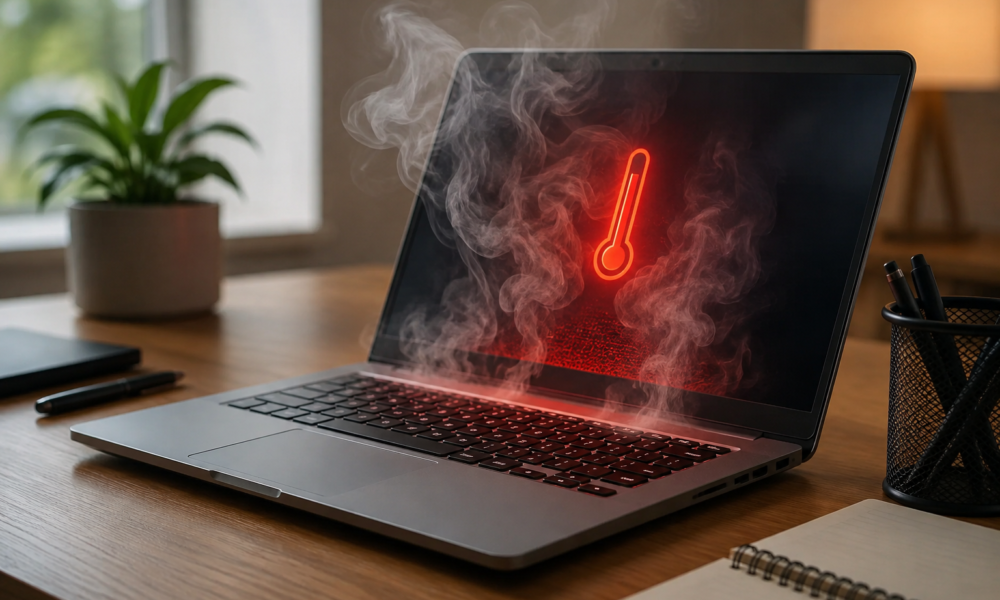
Laptop overheating is caused by dust buildup, poor ventilation, and resource-heavy software. The eight most effective fixes include cleaning vents, using a cooling pad, improving airflow, closing background apps, updating drivers, adjusting power settings, replacing thermal paste, and optimizing your work environment.
Table Of Content
- Understanding Laptop Overheating: What’s Actually Happening?
- How to check if your laptop is running too hot
- Method 1: Clean Your Laptop’s Vents and Fans
- Method 2: Use a Laptop Cooling Pad
- Method 3: Improve Airflow Around Your Laptop
- Method 4: Monitor and Close Resource-Heavy Applications
- Method 5: Update Drivers and BIOS
- Method 6: Adjust Power Settings and Performance Options
- Method 7: Replace Thermal Paste
- Method 8: Optimize Your Work Environment
- Quick Reference: Which Method Should You Try First?
- Keep Your Laptop Cool for the Long Haul
- Frequently Asked Questions
- What is the safe operating temperature for a laptop CPU?
- How do I know if my laptop is overheating without software?
- Can laptop overheating permanently damage hardware?
- How much does it cost to fix an overheating laptop professionally?
- Does a cooling pad really make a difference?
- Why does my laptop overheat only when charging?
- How often should I replace thermal paste on a laptop?
Your laptop suddenly slows to a crawl. The fan roars like a jet engine. The bottom of the chassis feels hot enough to fry an egg. Sound familiar?
Laptop overheating is one of the most common—and most damaging—problems that affects everyday users, gamers, developers, and remote workers alike. When a laptop runs too hot for too long, it doesn’t just feel uncomfortable. It triggers thermal throttling, which deliberately slows down your processor to prevent permanent damage. The result: sluggish performance at exactly the moment you need your machine to be fast.
The stakes go beyond inconvenience. Sustained high temperatures degrade your battery faster, wear out internal components, and can eventually cause hardware failure. According to a study by the Lawrence Berkeley National Laboratory, every 10°C increase in operating temperature can cut electronic component lifespan nearly in half.
The good news? Most overheating problems are completely fixable without professional help. This guide walks you through 8 proven methods to cool down your laptop, protect your hardware, and restore peak performance—from quick fixes you can do right now to longer-term maintenance habits worth building.
Understanding Laptop Overheating: What’s Actually Happening?
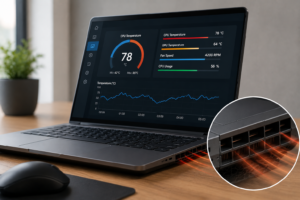
Before diving into solutions, it helps to understand what’s going on inside your machine.
Laptops generate heat through their CPU (central processing unit) and GPU (graphics processing unit). Under normal conditions, internal fans and heat pipes dissipate that heat safely. The problem starts when something disrupts that process.
Common causes of laptop overheating include:
- Dust and debris clogging intake and exhaust vents
- Blocked airflow from using laptops on soft surfaces like beds or pillows
- Demanding applications pushing the CPU and GPU to their limits
- Dried-out thermal paste between the processor and heat sink
- Outdated drivers or BIOS causing inefficient power management
- High ambient room temperatures
How to check if your laptop is running too hot
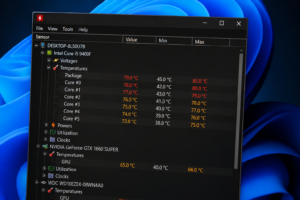
A healthy laptop CPU typically operates between 40–70°C under normal use. Temperatures above 90°C under load are a serious warning sign.
Use free tools to monitor your laptop’s temperature in real time:
- HWMonitor – Windows, comprehensive hardware monitoring
- Core Temp – Lightweight, CPU-focused
- iStatMenus – macOS monitoring suite
- MSI Afterburner – Ideal for GPU monitoring during gaming
Warning signs your laptop is running too hot:
- Unexpected shutdowns or restarts
- Fan noise that never stops
- Significant performance slowdowns mid-task
- Hot keyboard or chassis surface
- Screen freezes or graphical glitches
Method 1: Clean Your Laptop’s Vents and Fans
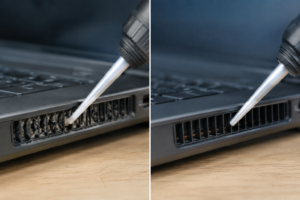
This is the single most impactful fix for most overheating laptops.
Dust accumulates inside vents and on fan blades over time, blocking airflow and trapping heat. Even a thin layer of dust can raise internal temperatures by 10–15°C.
What you’ll need:
- Compressed air canister
- Soft-bristled brush
- Microfiber cloth
- Optional: Phillips screwdriver (for deeper cleaning)
Step-by-step cleaning process:
- Power off your laptop completely and unplug it.
- Work in a well-ventilated area (ideally outdoors).
- Hold the compressed air can upright and spray short bursts into the exhaust vents.
- Use the soft brush to remove any loosened dust from around the vents.
- Wipe down the exterior with a microfiber cloth.
How often should you clean? For most users, every 3–6 months. If you work in dusty environments or own pets, clean every 6–8 weeks.
Method 2: Use a Laptop Cooling Pad
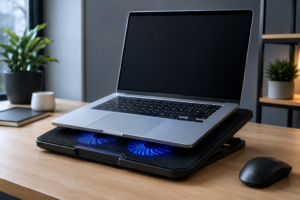
A cooling pad is an external accessory that sits beneath your laptop and provides additional active or passive cooling. For users who run demanding applications regularly—video editing, gaming, data processing—a cooling pad can lower temperatures by 5–15°C.
Types of cooling pads:
|
Type |
Best For |
Price Range |
|---|---|---|
|
Active (with fans) |
Gaming, video editing, heavy workloads |
$20–$80 |
|
Passive (mesh/aluminum) |
Casual users, light work |
$10–$40 |
|
Vacuum fan coolers |
Targeted CPU/GPU cooling |
$15–$35 |
|
Multi-surface pads |
Office desks, portability |
$25–$60 |
Top-rated cooling pads to consider:
- Havit HV-F2056 – Budget-friendly, three quiet fans
- Thermaltake Massive TM – Premium build, adjustable fan speed
- KLIM Ultimate – Slim and portable for travel
Method 3: Improve Airflow Around Your Laptop
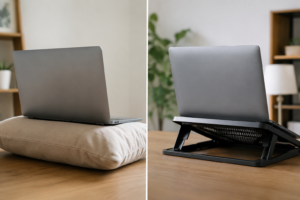
Sometimes the problem isn’t inside the laptop—it’s the surface it’s sitting on.
Using your laptop on a bed, couch, or cushion blocks the bottom vents entirely. The intake fans draw in hot, recycled air instead of fresh cool air, which quickly overwhelms the cooling system.
Best practices for laptop airflow:
- Always use your laptop on a hard, flat surface (desk, table, or lap desk)
- Keep at least 6 inches of clearance around all sides
- Avoid placing your laptop against walls or in enclosed spaces
- Position the laptop where ambient air is cooler—near a window or air vent
A simple laptop stand can raise your machine off the desk, improving airflow from below while also improving your ergonomics. Look for stands with open slat designs rather than solid bases.
Method 4: Monitor and Close Resource-Heavy Applications
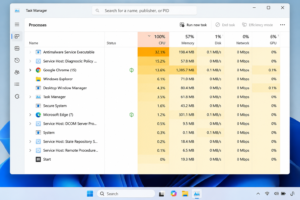
Every application running in the background consumes CPU or GPU resources. More resource consumption means more heat.
How to identify temperature-causing apps:
- Windows: Press
Ctrl + Shift + Escto open Task Manager → click the “CPU” column to sort by usage - Mac: Open Activity Monitor (
Cmd + Space→ type “Activity Monitor”) → sort by “CPU %”
Look for processes consuming 20%+ CPU with no clear reason.
Common resource hogs to watch for:
- Web browsers with multiple tabs open
- Cloud sync tools (Google Drive, OneDrive, Dropbox)
- Antivirus scans running in background
- Auto-update processes
Recommended temperature monitoring apps:
- Open Hardware Monitor – Free, lightweight, Windows
- GPU-Z – GPU-focused, real-time data
- Macs Fan Control – Manual fan speed control for macOS
Method 5: Update Drivers and BIOS
Outdated hardware drivers can cause your CPU or GPU to run inefficiently—generating excess heat without a proportional performance benefit.
How to update drivers on Windows:
- Open Device Manager (
Win + X→ Device Manager) - Right-click your GPU or CPU entry → “Update driver”
- Select “Search automatically for drivers”
Alternatively, use manufacturer tools like NVIDIA GeForce Experience or AMD Radeon Software for graphics driver updates.
Updating your BIOS:
BIOS updates often include thermal management improvements. Check your laptop manufacturer’s support page (Dell, HP, Lenovo, ASUS, etc.) for the latest BIOS version.
⚠️ Only update BIOS if you’re comfortable with the process. A failed BIOS update can cause serious system issues. Always plug in your charger before starting.
Method 6: Adjust Power Settings and Performance Options
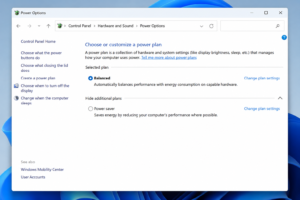
Your laptop’s power plan directly affects how hard the CPU works—and how much heat it generates.
Windows power settings:
- Open Control Panel → Power Options
- Switch from “High Performance” to “Balanced” or “Power Saver”
- For advanced control: Search “Processor power management” in Power Options and lower the Maximum Processor State to 80–90%
Mac power settings:
- Go to System Preferences → Battery
- Enable “Low Power Mode” when on battery
- On MacBooks with M-series chips, set Energy Mode to “Low Power” for sustained cooling
Reducing maximum processor state slightly lowers peak performance, but often has a noticeable effect on temperature—especially useful during video calls, document editing, or light browsing when full power isn’t needed.
Method 7: Replace Thermal Paste
Thermal paste is a heat-conductive compound applied between the CPU/GPU and the heat sink. Over time—typically 2–5 years—it dries out and becomes less effective at transferring heat away from the processor.
Signs you need new thermal paste:
- Laptop is 3+ years old and temperatures have gradually worsened
- Temperatures stay high even after cleaning vents
- Performance has noticeably declined
DIY thermal paste replacement:
Replacing thermal paste requires disassembling your laptop, which voids warranties on some models. If you’re comfortable with basic hardware work:
- Purchase quality thermal paste — Arctic MX-4 and Thermal Grizzly Kryonaut are well-regarded options
- Follow a model-specific tutorial on iFixit.com for safe disassembly
- Apply a pea-sized amount of paste to the processor center
- Reassemble and monitor temperatures
Expected improvement: Many users report temperature drops of 10–20°C after thermal paste replacement on older laptops.
If you’re not confident doing this yourself, most laptop repair shops charge $30–$60 for the service.
Method 8: Optimize Your Work Environment
Your laptop doesn’t operate in a vacuum—literally. The room temperature and physical placement of your machine affect how efficiently it can cool itself.
Environmental tips for cooler laptop performance:
- Work in rooms with temperatures below 77°F (25°C) where possible
- Keep humidity moderate (40–60%) — extreme dryness increases static, while high humidity traps heat
- Avoid direct sunlight on your laptop
- In summer months, use air conditioning or a desk fan directed away from (not toward) your laptop
- If working outdoors, find shaded spots
Laptop placement for maximum airflow:
- Elevate the rear of the laptop with a small stand to angle it toward cooler air
- Use a USB-powered desk fan to improve room circulation
- Avoid carpeted surfaces, which trap heat and static
Quick Reference: Which Method Should You Try First?
|
Situation |
Best Method to Start With |
|---|---|
|
Fan is loud, laptop is old |
Clean vents (Method 1) |
|
Laptop used on soft surfaces |
Improve airflow (Method 3) |
|
Slows down during gaming/editing |
Cooling pad (Method 2) + close background apps (Method 4) |
|
3+ years old, always runs hot |
Replace thermal paste (Method 7) |
|
Running latest software slowly |
Update drivers and BIOS (Method 5) |
|
On battery, heat during light work |
Adjust power settings (Method 6) |
|
Hot room, summer months |
Optimize work environment (Method 8) |
Keep Your Laptop Cool for the Long Haul
Laptop overheating is a fixable problem—but only if you take action before it causes lasting damage.
Start with the simplest methods: clean your vents, move your laptop to a hard surface, and check Task Manager for runaway processes. These three steps alone resolve the majority of overheating issues without spending a dollar.
For older machines running hotter than they should despite basic maintenance, thermal paste replacement is often the single most impactful upgrade you can make. Pair that with a quality cooling pad and updated drivers, and you’ll likely see a dramatic improvement in both temperature and performance.
Build a maintenance habit—clean your vents every 3–6 months, keep your drivers current, and monitor temperatures during heavy workloads. Your laptop will thank you with years of reliable performance.
Ready to test these methods? Download HWMonitor or Core Temp right now, check your current CPU temperature, and start with Method 1. Track your results over 24–48 hours and compare before and after temperatures to measure real improvement.
ALSO READ : Windows 11 Running Slow ? 10 Ways to Speed It Up
Frequently Asked Questions
What is the safe operating temperature for a laptop CPU?
A laptop CPU running between 40–70°C under normal use is considered healthy. Temperatures above 90°C under load are dangerous and indicate a serious cooling problem that needs immediate attention.
How do I know if my laptop is overheating without software?
Physical signs include a very hot bottom surface, constant loud fan noise, unexpected shutdowns, performance slowdowns, and screen freezes. These symptoms together strongly indicate overheating.
Can laptop overheating permanently damage hardware?
Yes. Prolonged exposure to high temperatures degrades the CPU, GPU, battery, and motherboard components. Battery lifespan is especially sensitive — sustained heat can permanently reduce battery capacity within months.
How much does it cost to fix an overheating laptop professionally?
Basic cleaning and thermal paste replacement at a repair shop typically costs $40–$80. If internal components have already been damaged by heat, repair costs increase significantly depending on what needs replacing.
Does a cooling pad really make a difference?
Yes, particularly for gaming laptops and machines used for video editing or heavy multitasking. Active cooling pads with fans can reduce temperatures by 5–15°C, which meaningfully reduces thermal throttling and improves sustained performance.
Why does my laptop overheat only when charging?
When plugged in, many laptops switch to higher-performance power profiles, increasing CPU workload and heat output. Combine that with heat generated by the battery charging process, and temperatures rise faster than usual. Switching to “Balanced” mode while charging often resolves this.
How often should I replace thermal paste on a laptop?
For most users, every 3–5 years is a reasonable schedule. If your laptop is running noticeably hotter than it did when new and cleaning the vents doesn’t help, thermal paste replacement is likely overdue.
Stay updated with the latest technology trends, AI news, and digital innovations at Fortune Tech News.





[…] Durabook S15 Robust i7-1255u laptop is a military-grade rugged laptop powered by Intel’s 12th Gen Core i7-1255U processor, priced at $2,999.00 through Rugged Books. It combines serious durability with modern connectivity—Wi-Fi 6E, Bluetooth v5.3, and a Full HD display—making it a strong choice for field professionals, government personnel, and enterprise teams operating in harsh environments. […]