




How to Secure Your Google Account: The Complete Guide
How to Secure Your Google Account! To secure your Google account, enable two-factor authentication (2FA), create a strong and unique password, review connected apps and devices, keep recovery options...

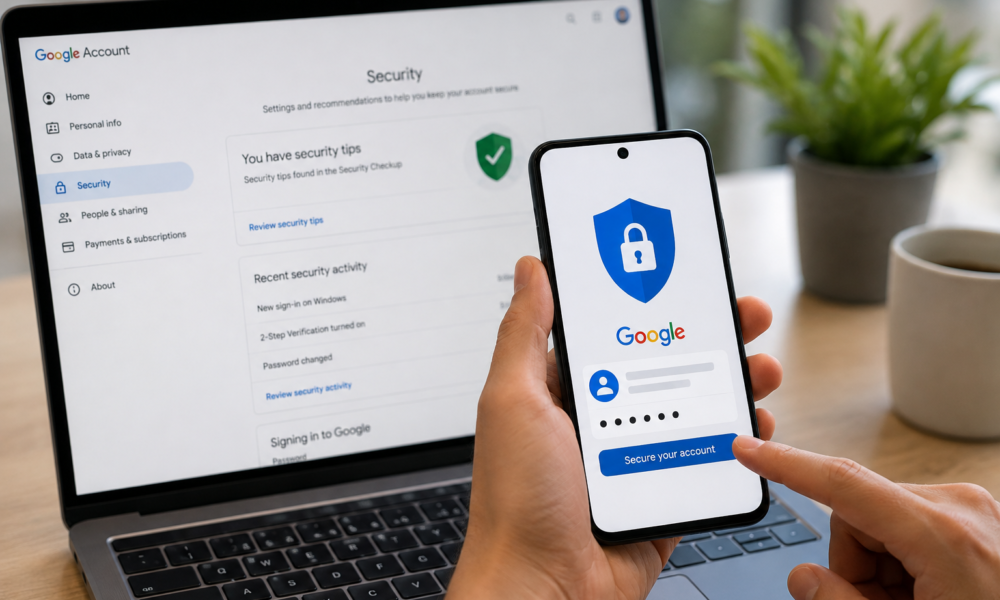
How to Secure Your Google Account! To secure your Google account, enable two-factor authentication (2FA), create a strong and unique password, review connected apps and devices, keep recovery options updated, and stay alert to phishing. These steps block the vast majority of account takeover attempts and protect your personal, financial, and identity data.
Table Of Content
- Why does Google account security matter so much?
- What are the essential security settings to enable first?
- Turn on two-factor authentication (2FA)
- Add app passwords for third-party apps
- Set up a security key
- Review connected apps and devices
- What are the best password practices for a Google account?
- Create strong, unique passwords
- Use a password manager
- Avoid common mistakes
- Update passwords when needed
- How can you recognize and prevent phishing attacks?
- Common phishing tactics targeting Google users
- How to spot suspicious emails and links
- Verify before you click
- Report phishing attempts
- How do you secure your Google account recovery options?
- Add a recovery phone and backup email
- Keep recovery information updated
- Know the recovery process
- How should you audit and monitor your Google account?
- What additional security measures should you take?
- Secure your devices
- Be careful on public Wi-Fi
- Back up your data
- Protect family members’ accounts
- Putting your Google account security into action
- Frequently asked questions
- How do I secure my Google account quickly?
- Is two-factor authentication really necessary?
- What should I do if my Google account is hacked?
- How often should I check my Google account security?
- Are SMS text codes safe for two-factor authentication?
Your Google account is the master key to your digital life. It holds your emails, photos, documents, contacts, search history, and often your payment details. If someone breaks in, they don’t just read your inbox—they can reset passwords for banking apps, impersonate you, and access every service linked to your Google login.
Account breaches are not rare events. Google has reported that its automatic protections block more than 100 million phishing attempts every day, and research from the company shows that simply adding a recovery phone number can block up to 100% of automated bot attacks. Despite this, millions of people still rely on weak passwords and skip basic protections.
This guide walks you through exactly how to secure your Google account, step by step. You’ll learn which settings to enable first, how to build strong passwords, how to spot phishing, and how to audit your account so you catch trouble early. Whether you use Google for personal email or run a business on Google Workspace, these steps will dramatically reduce your risk.
Why does Google account security matter so much?
A single Google account often unlocks dozens of connected services. That convenience is also the risk. When one login controls so much, a breach has a domino effect.
Here’s what’s at stake:
- Personal data and privacy: Your Gmail, Google Photos, and Drive contain private conversations, images, and documents that can be exposed or held for ransom.
- Financial information: Google Pay, saved cards, and receipts in your inbox give attackers a roadmap to your money.
- Identity theft: With access to your email, criminals can reset passwords on other accounts and pose as you.
- Connected services and devices: Your Google login often signs you into YouTube, Android phones, smart home devices, and third-party apps. One compromised account can spread across all of them.
Think of your Google account as the front door to a house with many rooms. Locking that one door protects everything inside.
What are the essential security settings to enable first?
If you only have five minutes, start here. These settings deliver the biggest protection for the least effort.
Turn on two-factor authentication (2FA)
Two-factor authentication—Google calls it 2-Step Verification—adds a second check after your password. Even if someone steals your password, they can’t log in without the second factor.
To set it up:
- Go to your Google Account and open the Security tab.
- Select 2-Step Verification and follow the prompts.
- Choose a method: Google prompts on your phone, an authenticator app, or a text code.
Google prompts and authenticator apps are safer than text messages, since SMS codes can be intercepted. Enable this first—it’s the single most effective step you can take.
Add app passwords for third-party apps
Some older apps don’t support 2FA directly. Instead of turning off your protection, generate a unique app password for each one. This gives the app a dedicated code without exposing your main password.
Set up a security key
For maximum protection, use a physical security key or your phone’s built-in key. A security key is a small device that confirms it’s really you. It’s the gold standard for high-risk users—journalists, executives, and anyone handling sensitive data.
Review connected apps and devices
Over time, you probably granted dozens of apps access to your Google account. Some you may not even remember. Open Security > Your connections to third-party apps and remove anything you no longer use. Fewer connections mean fewer ways in.
What are the best password practices for a Google account?
Your password is the first line of defense. A weak one undoes every other protection.
Create strong, unique passwords
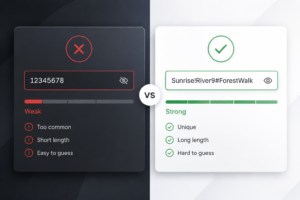
A strong password is long, random, and used nowhere else. Aim for at least 12 characters mixing letters, numbers, and symbols. Never reuse your Google password on other sites—if one site is breached, attackers will try that password everywhere.
Use a password manager
Remembering dozens of unique passwords is impossible. A password manager stores them securely and fills them in for you. Trusted options include Google Password Manager (built into Chrome and Android), 1Password, and Bitwarden.
Avoid common mistakes
Steer clear of these traps:
- Using personal info like birthdays, pet names, or your address.
- Simple patterns like “123456” or “password.”
- Reusing the same password across accounts.
- Sharing your password over email or text.
Update passwords when needed
You don’t need to change your password every month if it’s strong and unique. Do change it immediately if you suspect a breach, receive a suspicious login alert, or find your email in a data leak (you can check at Have I Been Pwned.
How can you recognize and prevent phishing attacks?
Phishing is the most common way accounts get hijacked. Attackers trick you into handing over your password by pretending to be Google or a service you trust.
Common phishing tactics targeting Google users
- Fake “security alert” emails claiming your account will be closed.
- Messages urging you to “verify your account” through a link.
- Fake Google Docs or Drive sharing notifications.
- Login pages that look identical to Google’s but sit on a different web address.
How to spot suspicious emails and links
Slow down and check before you click. Warning signs include:
- Urgent or threatening language pushing you to act fast.
- A sender address that doesn’t match Google’s real domain.
- Spelling and grammar errors.
- Links that don’t lead to a genuine google.com address.
Hover over any link to preview the real destination before clicking. On mobile, press and hold to reveal the full URL.
Verify before you click
If an email claims to be from Google, don’t use its links. Instead, open your browser and type the Google address yourself, or go directly to your account settings. When in doubt, contact the service through its official website.
Report phishing attempts
In Gmail, open the suspicious message, click the three-dot menu, and choose Report phishing. This helps Google protect you and other users. You can learn more from Google’s official phishing safety guidance.
How do you secure your Google account recovery options?
Recovery options let you back into your account if you’re locked out—but only if they’re set up correctly and kept current.
Add a recovery phone and backup email
Go to Security > How you sign in to Google and add both a recovery phone number and a backup email address. As noted earlier, a recovery phone alone can block nearly all automated attacks. These also alert you the moment something looks wrong.
Keep recovery information updated
Old phone numbers and abandoned email addresses are a liability. If you change your number or stop using an email, update your recovery details right away. An attacker who gains control of an outdated recovery address could hijack your account.
Know the recovery process
If your account is ever compromised, visit Google’s Account Recovery page. Answer the verification questions as accurately as you can, ideally from a device and location you normally use. The more your details match, the faster you regain access.
How should you audit and monitor your Google account?
Security isn’t a one-time task. Regular check-ups catch problems before they grow.
Here’s a simple audit routine:
|
Task |
What to check |
How often |
|---|---|---|
|
Security Checkup |
Run Google’s built-in Security Checkup tool |
Every 3 months |
|
Active sessions |
Review devices signed into your account and sign out of unknown ones |
Monthly |
|
Account activity |
Check recent security events and login locations |
Monthly |
|
Connected apps |
Remove apps and services you no longer use |
Every 3 months |
|
Security alerts |
Confirm alert notifications are turned on |
Once, then when prompted |
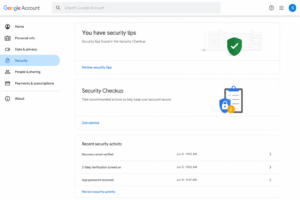
To check active devices, open Security > Your devices. If you see a device you don’t recognize, sign it out and change your password immediately. Google also sends security alerts by email and phone—act on these right away rather than dismissing them.
What additional security measures should you take?
Beyond your account settings, a few habits round out your protection.
Secure your devices
Your account is only as safe as the devices you use. Lock every phone, tablet, and computer with a PIN, password, or biometric login. Keep your operating system and apps updated, since updates patch security holes.
Be careful on public Wi-Fi
Public networks at cafes and airports are easy targets for snooping. Avoid logging into sensitive accounts on public Wi-Fi, or use a trusted VPN to encrypt your connection.
Back up your data
Even with strong security, hardware fails and mistakes happen. Use Google Takeout to export copies of your data, and keep backups of critical files somewhere separate. If you ever lose access, you’ll still have your information.
Protect family members’ accounts
Help less tech-savvy relatives, especially children and older adults, set up 2FA and strong passwords. Google Family Link lets parents manage and supervise kids’ accounts. A shared understanding of security protects everyone in the household.
Putting your Google account security into action
Securing your Google account comes down to a handful of consistent habits. Turn on two-factor authentication, use a strong and unique password stored in a password manager, keep your recovery options current, stay skeptical of unexpected emails, and audit your account every few months.
None of these steps takes long on their own. Together, they build a layered defense that stops nearly every common attack. The best time to start is now, before a breach forces your hand.
Run Google’s Security Checkup today and knock out any warnings it flags. Then set a recurring reminder to revisit these steps each quarter. A few minutes of attention keeps your digital life—and everyone connected to it—far safer.
Frequently asked questions
How do I secure my Google account quickly?
Enable 2-Step Verification, set a strong unique password, and add a recovery phone number and backup email. These three steps take under ten minutes and block the vast majority of account takeover attempts.
Is two-factor authentication really necessary?
Yes. Two-factor authentication is the single most effective protection for your Google account. Even if an attacker steals your password, they can’t log in without your second factor, such as a phone prompt or authenticator code.
What should I do if my Google account is hacked?
Go to Google’s Account Recovery page immediately and verify your identity from a device and location you normally use. Once you’re back in, change your password, sign out all devices, review connected apps, and turn on 2-Step Verification if it isn’t already active.
How often should I check my Google account security?
Run Google’s Security Checkup every three months and review your active sessions and account activity monthly. Regular audits help you catch unauthorized access before it causes damage.
Are SMS text codes safe for two-factor authentication?
SMS codes are better than no second factor, but they can be intercepted. For stronger protection, use an authenticator app, Google prompts, or a physical security key instead.





No Comment! Be the first one.